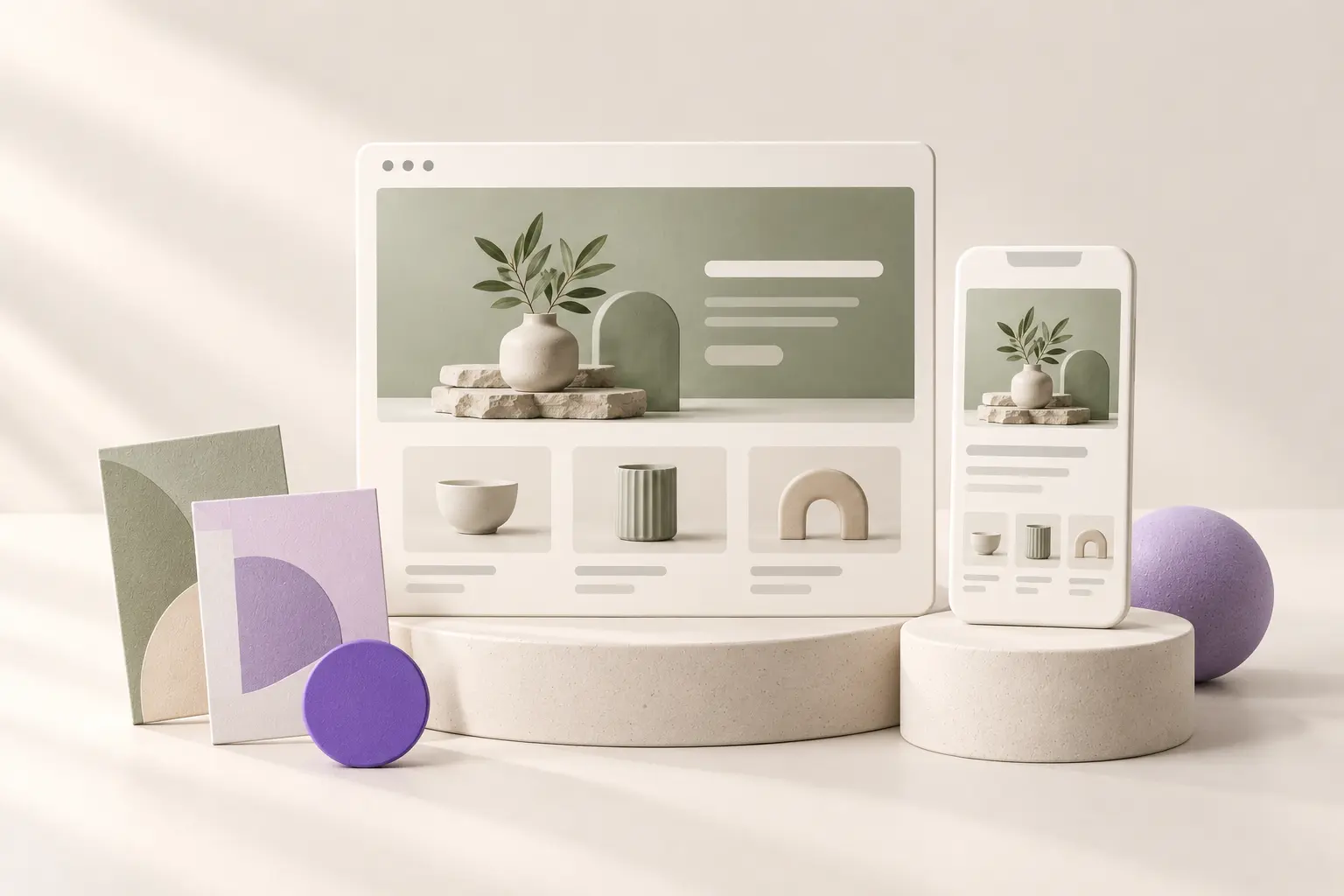
A store demo has an advantage your project does not: every product image, title and collection has been chosen to fit the layout. That makes the demo useful for understanding a visual direction, but incomplete as a buying decision. Before importing anything, build a small evaluation set from your own catalog. A design that handles your awkward content well is usually a better starting point than one that only looks good with ideal sample products.
You do not need to migrate your entire store to make this judgment. Choose a handful of representative items and follow one realistic shopping journey. The aim is to find the work you would have to do after activation, while changing the live store as little as possible.
Build a representative product set
Select a product with a short name, one with a long name, an item with several options and an item whose photograph has an unusual shape. If your store uses sale prices, stock notices or detailed specifications, include an example of each. These are ordinary parts of selling, so they should be part of the design review rather than surprises discovered after launch.
Keep the selection deliberately small. For example, a ceramics shop could use a single mug, a dinner set with size choices, a limited glaze and a gift voucher. This is an illustrative test set, not a claim about a particular store. Its value is that four items reveal more layout behavior than a row of nearly identical demo products.
Read the product grid as a customer
Open a category page and look at the first screen without scrolling. Can you identify the type of products, distinguish the items and understand the price? Look for titles that become difficult to scan, crops that remove important details and sale labels that compete with the product itself. The goal is clear presentation rather than fitting the maximum possible number of cards into one row.
Repeat the check on a narrow screen. A desktop grid may look balanced while a phone view gives too little space to names or prices. Try the real device you use most often, enlarge text and open the navigation. Write down specific issues such as a clipped title or a filter that is difficult to reach. Avoid vague notes such as make it more premium, which are hard to turn into a useful fix.
Follow one buying journey
Choose a product, select any required options and find the add-to-cart action. Then inspect the cart and checkout. Notice whether the visual language remains coherent as you move through the store. You are evaluating clarity: the current quantity, price, next action and any important message should be easy to identify. Do not judge checkout by its color alone.
WooCommerce gives Shop, Cart, Checkout and My Account distinct responsibilities. Verify that the store has the correct pages assigned rather than assuming a design import will do it correctly. For an existing live shop, use a staging copy for transactional testing. Any payment test should use the gateway’s test environment and your own authorized store, with no real customer charge.
Separate public demos from private previews
A public demo shows a curated example catalog. A private preview uses the products and settings of the website you are configuring. They answer different questions. Use the public demo to narrow the visual direction, then use a safe local or staging preview to assess the content fit. Ask what the preview changes before opening it, especially if the tool calls itself a one-click importer.
Temvella offers public design demos and an administrator preview with the connected site’s products. The private preview is intended for reviewing appearance before applying changes; shopping actions are disabled there. That makes it a useful design check, but it does not replace testing the real cart and checkout after activation on staging. The current Library documentation explains the setup and supported workflow.
Read the import boundary
Before importing, find out whether the package adds pages, menus, media or products. Ask whether another activation creates duplicates and whether existing front-page settings are replaced. A backup is still sensible even when a tool promises a reversible workflow. Keep a short record of the active theme, assigned home page and store page IDs so you can compare the result.
Also check the required theme and plugins. A design that depends on a particular builder or commerce extension is not necessarily a poor choice, but those requirements affect maintenance. An attractive product filter in a demo may come from an additional extension. Confirm what is included and which parts your existing store already provides before buying overlapping tools.
Make the decision with a short scorecard
Compare no more than three finalists. For each, record product clarity, mobile navigation, buying journey, editing effort and required dependencies. Use simple notes such as ready, needs adjustment or not suitable. This keeps the decision tied to your actual store instead of the order in which you opened the demos.
When one design fits, stop collecting alternatives and plan the remaining content work. You can explore the Temvella designs with that scorecard in mind, then use our storefront checklist for the final review. Choosing well means knowing what still needs attention, not finding a demo that magically completes the whole project.
Sources and further reading
WooCommerce: choosing and changing a theme. Technical references checked October 26, 2026.
WooCommerce: required store pages. Technical references checked October 26, 2026.